Professional Presentation Display System

YOUR PRESENTATION. PERFECTLY DELIVERED.

NextNote connects to PowerPoint and pushes live slides, speaker notes, and next-slide previews to any display on your network — in real time.

Coming Soon Learn More
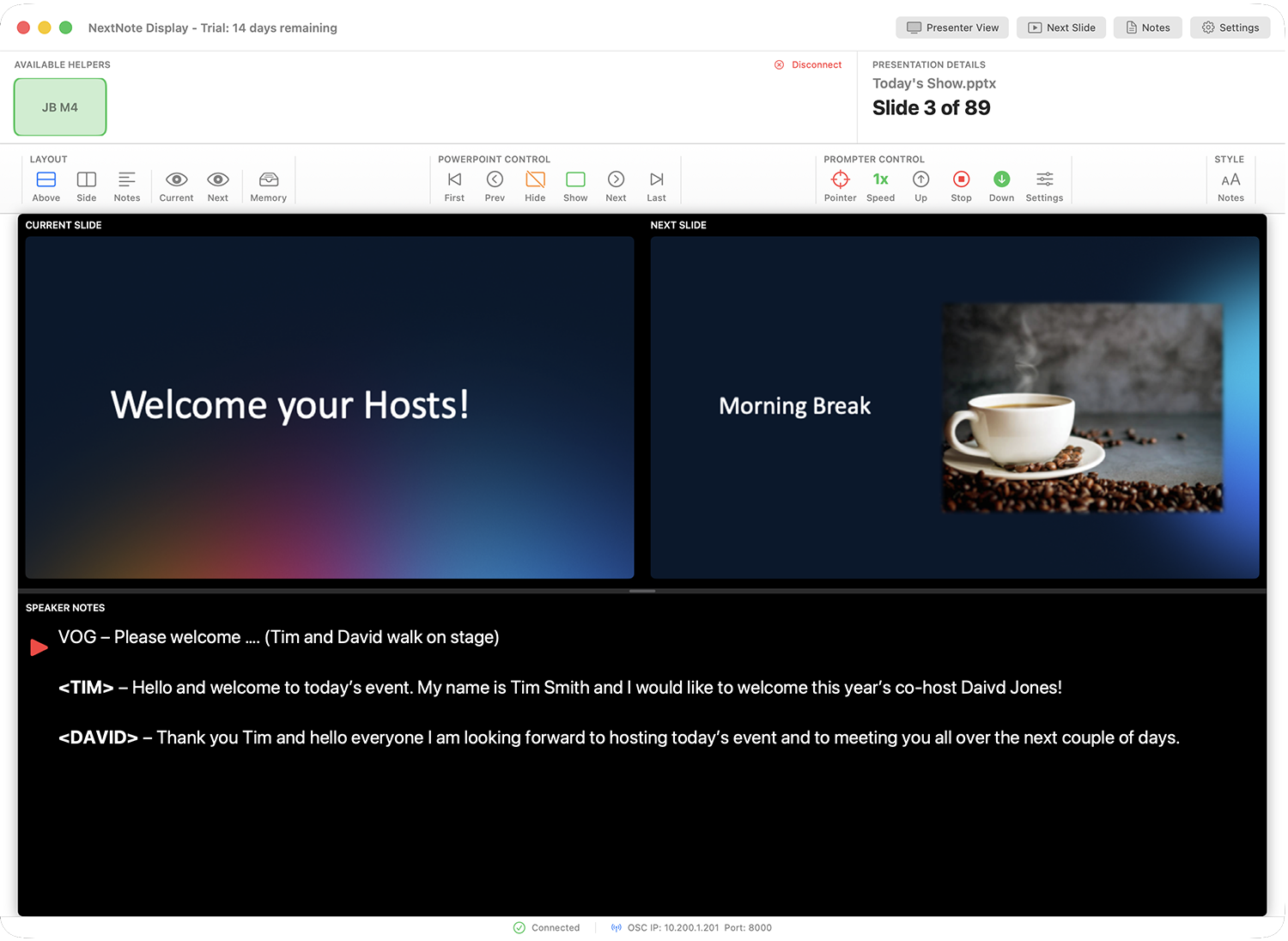
NextNote operator interface
LIVE EVENTS CORPORATE CONFERENCES BROADCAST PRODUCTION AWARDS CEREMONIES PRODUCT LAUNCHES HYBRID EVENTS LIVE EVENTS CORPORATE CONFERENCES BROADCAST PRODUCTION AWARDS CEREMONIES PRODUCT LAUNCHES HYBRID EVENTS

What it does

BUILT FOR PROFESSIONALS. SIMPLE ENOUGH FOR ANYONE.

📐

Flexible Layouts

Three default layout modes — slides above notes, slides beside notes, or notes only. Dividers are draggable so you can set exactly how much space each area gets.

💾

Layout Memory

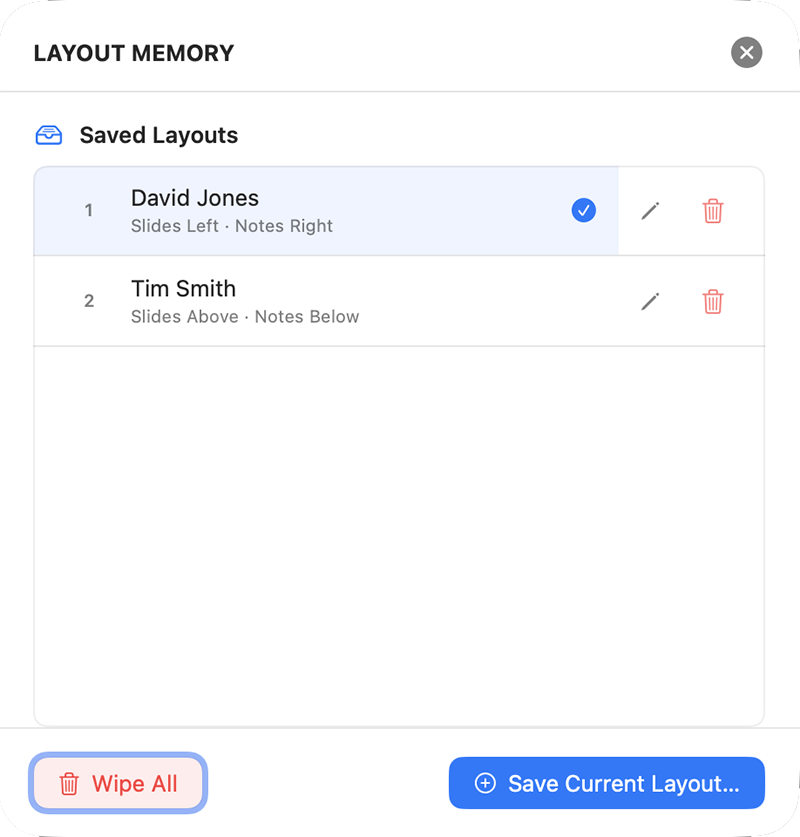
Save up to 20 named speaker layout configurations and recall them instantly, all from the interface or via OSC. Perfect for multi-speaker events where each presenter needs a different setup.

🖥️

Multiple Output Windows

Open independent Presenter View, Next Slide, and Speaker Notes windows simultaneously — each can be dragged to a separate display and made full screen.

🅿

Teleprompter Mode

Smooth, speed-controlled scrolling of speaker notes with an adjustable pointer marker. All controlled from the operator interface or via OSC.

Real-Time Sync

Slide content and speaker notes are pushed the moment you advance.

📡

Zero-Config Discovery

NextNote uses Bonjour for automatic network discovery. Display machines find the Helper instantly — no IP addresses, no manual configuration.

💻

Cross Platform

Fully cross platform. Install the helper app on a Windows or macOS PowerPoint machine and run the display module on Windows or macOS.

🎛️

OSC Control

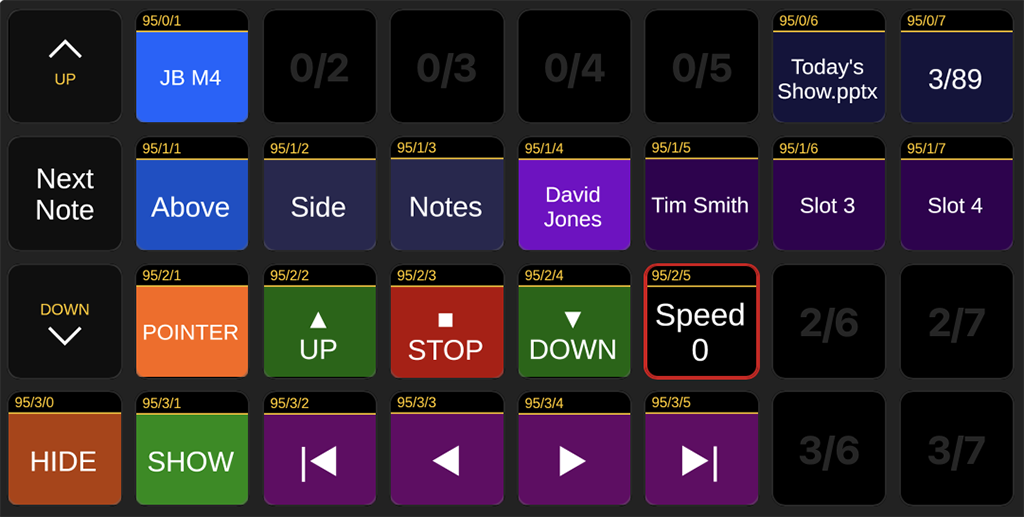
Full OSC support lets operators control NextNote from a Stream Deck via Bitfocus Companion, or any OSC-capable control surface. Two-way feedback keeps Companion in sync.

Layout Memory

INSTANT RECALL FOR EVERY SPEAKER

Save a complete snapshot of your operator layout — font size, divider position, dark mode, teleprompter settings — as a named memory slot. Recall it with a single click or an OSC command from your Stream Deck.

Up to 20 named slots. Each one can be triggered remotely, making handovers between speakers invisible to the audience.

Layout Memory sheet

Teleprompter Mode

NOTES THAT MOVE WITH YOUR PRESENTER

Activate smooth auto-scrolling of speaker notes at three speeds, with an adjustable pointer marker to show presenters exactly where to read.

Control from the operator interface, keyboard, or Stream Deck. Speed and direction can be changed on the fly without interrupting the presentation.

OSC & Bitfocus Companion

FULL CONTROL FROM YOUR STREAM DECK

NextNote speaks OSC natively. Connect Bitfocus Companion and control everything — slide navigation, layout switching, teleprompter speed, memory recall — from a Stream Deck or any OSC controller.

Two-way feedback keeps button states, labels, and indicators in Companion perfectly in sync with what NextNote is doing.

OSC and Companion integration

THE RIGHT VIEW FOR EVERY ROLE

01

Operator View

The main operator interface. Current and next slides with full speaker notes — three configurable layout modes with draggable dividers. Everything at a glance.

02

Presenter View

A clean full-screen output window mirroring the operator layout exactly — ready to drag to a second display or confidence monitor. Can be run full screen independently.

03

Next Slide

Full-screen preview of the upcoming slide. Ideal for a back-of-room confidence monitor so presenters always know what's coming next.

04

Speaker Notes

Speaker notes only — displayed large and clearly with optional teleprompter scroll. Sized to match the operator view so text wrapping is identical on both screens.

Setup Guide

UP AND RUNNING IN MINUTES

01
Mac or Windows

Install NextNote Helper

Download and install the NextNote Helper on the machine running PowerPoint. On Mac it lives in your menu bar; on Windows it runs in the system tray. Launch it before opening PowerPoint.

02
PowerPoint Add-In

Install the NextNote Add-In

Ensure PowerPoint is closed. Open the Helper and click Install Add-In. On Mac you will be prompted for your administrator password. On Windows, installation is automatic. Restart PowerPoint once complete.

03
PowerPoint

Enable Macros & Select Your Role

When PowerPoint opens you may be prompted to enable macros — click Enable. You can specifiy a optional role for this machine by going to the NextNote menu and selecting the Device drop down to choose None, Main, or Backup.

04
PowerPoint

Click Start

Press NextNote Start in the NextNote ribbon (or in the home ribbon) to activate. The Helper will confirm the connection is live. NextNote is now broadcasting slide content and notes to the network.

05
Display Machines

Connect Your Displays

Install NextNote Display on any Mac or Windows machine on the same network. It will automatically discover the Helper — no IP addresses required. Choose the PowerPoint machine and create your layouts and open the separate output windows you need for your presentation.

READY TO GO LIVE?

NextNote is available now. Completely cross platform — perfect for all presentation teams.

Coming Soon Manage My License